
Ads: promote your products
Optional ads paid from ad credit: sponsored products per click, your store banner above search results, fixed home-page slots, and the company page. Prices are shown on the Ads page.
In this article
Ads are entirely optional and open to verified sellers. You decide whether to promote, and pay from your sales balance or by card. Every ad is labelled Sponsored, and no ad changes who sells a product: a product ad only shows while you hold first place on it.
Ad credit
- Open Ads from the menu. At the top you see Ad credit and Your available sales balance.
- Under Top up, choose From my sales balance or By card, enter the amount, and press Top up or Pay.
- Optionally, switch on Automatic top-up: when ad credit drops below a line you choose, it is topped up from your sales balance by an amount you set.
Card payment shows only when it is open for your country, and a card top-up must be at least 20 times the minimum price per click. Ad credit is spent on ads only.
Ways to promote
| Way | Where it shows | How you pay |
|---|---|---|
| Pay per click (sponsored products) | In search results, categories and similar product pages | Only per click, within a daily budget you set |
| Store banner above search | Above search results: your logo, your line (up to 60 characters) and three of your products | Per click too |
| A fixed home-page slot | The Today's picks row on the home page | A fixed price for a day or a week (7 days), from ad credit |
| Monthly packages | Added to your ad credit | A fixed amount each month from your balance, for more ad credit than you pay |
| Company page | Your store page: cover, about text, featured products and your own page address | Monthly from your balance, renewed automatically, or one month by card |
Create a pay-per-click campaign
- Press New campaign.
- Choose the Campaign type (Sponsored products or Store banner) and the Targeting: automatic, where we match the right searches, or manual, where you choose keywords. Type and targeting are fixed once the campaign is created.
- Enter the Campaign name (only you see it), the Daily budget and the Highest price per click (at least the minimum shown), and start and end dates if you want.
- Choose the products. Only products you're first on right now will show.
- For manual targeting, one keyword per line: keyword | bid | exact, phrase or broad. A line starting with - is a negative keyword: your ad won't show for it.
- Press Create campaign. Later you can Pause, Resume or End campaign.
How a click is charged
- Second-price auction: you pay the least it takes to stay ahead of the next ad, never more than your highest bid and never less than the minimum.
- Ranking = your bid × how well the ad fits the search × quality. Quality comes from the click rate, your rating and your account health; a performance warning lowers it.
- One charged click per person on the same ad and product in 24 hours; clicks by automated programs are never charged.
- Never over budget: when the daily budget or the ad credit runs out, the ad stops showing.
- At most two ads per seller in the same place, and one ad per product.
Follow the results
The Ads page shows the last 30 days: Impressions, Clicks, Click rate, Spend, Sales from ads and Ad cost of sales. A sale counts for an ad when the buyer orders the product within 7 days of clicking its ad.
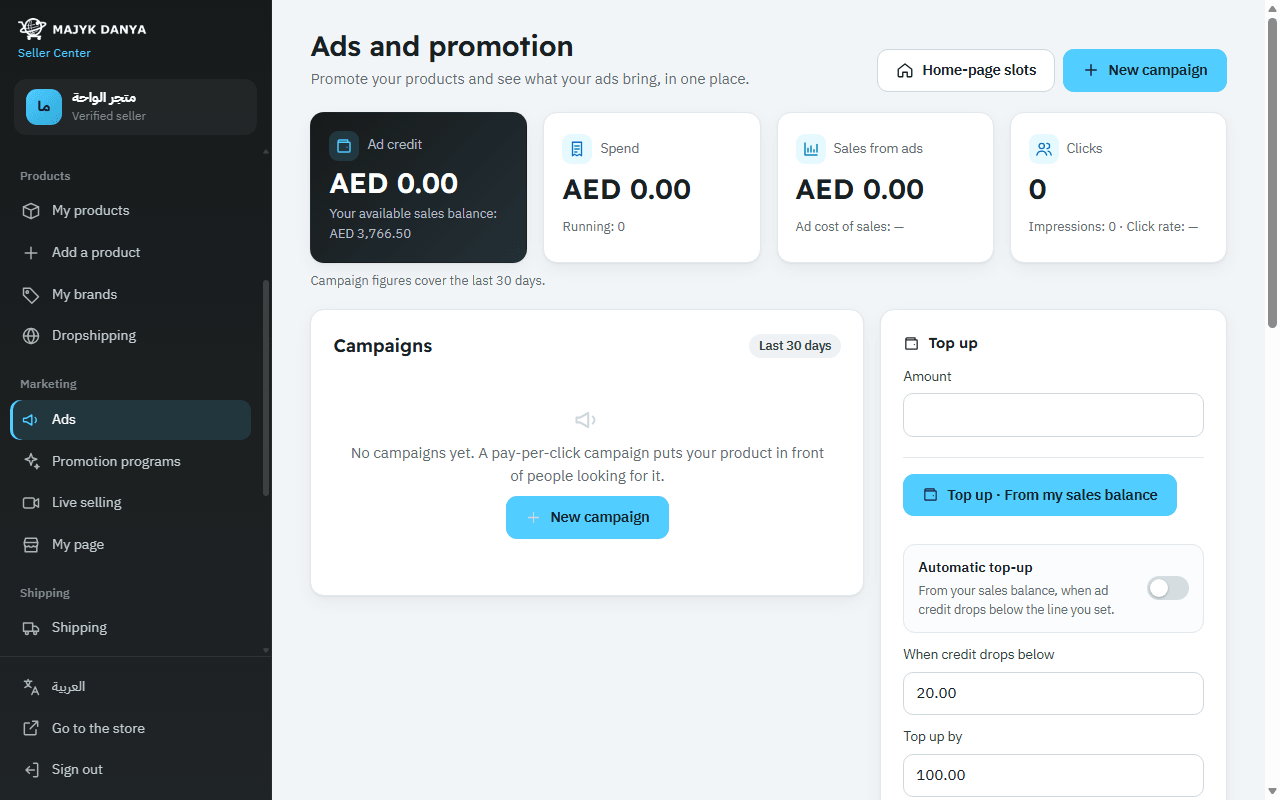
Home-page slots
- Press Home-page slots.
- Choose a live product in stock, the start day, and the length: One day or A week (7 days).
- Press Book. The price is paid from ad credit.
To cancel the days that haven't started yet, press Cancel the coming days; their price goes back to your ad credit.