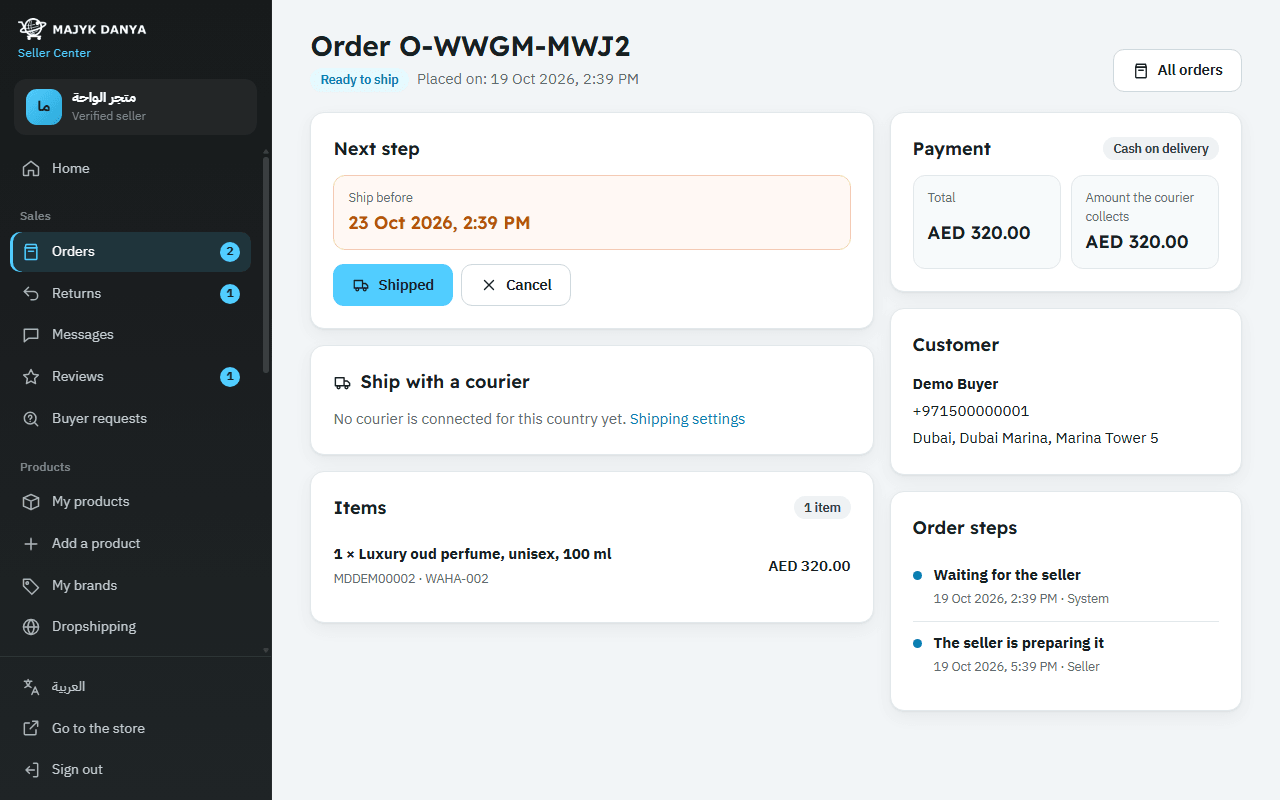
Accept and ship orders on time
Accept every order within 48 hours and ship it by the date you promised. Here are the steps, how to enter tracking, and what counts as late.
In this article
Fast acceptance and shipping are the basis of your account health and of how often your offers show. Every order has two clear deadlines, shown in the list and on the order page, and the system watches both automatically.
The two deadlines
| Deadline | How it's set | Shown as | If you miss it |
|---|---|---|---|
| Accept | 48 hours from the moment the order reaches you | "Accept before" | The system cancels it, and it counts against you as "Not accepted in time" |
| Ship | Order time + the longest "Handling days" among its items + 1 day | "Ship before" | Shipping after it counts as "Shipped late", and the buyer may cancel |
Accepting an order
- Open Orders and choose "Awaiting you".
- Open the order and check the items, quantities, delivery address and payment method.
- Press "Accept order". Its status becomes "Ready to ship" and the "Ship before" date appears.
Shipping and entering tracking
You have two ways:
- Book a courier from the order page (the "Ship with a courier" section): you get the waybill and label, the tracking number fills itself in, and the status becomes "Shipped" when the courier picks the parcel up. Details in Shipping methods.
- Ship your own way with any carrier, then enter the tracking yourself as in the steps below.
- On the order page, press "Shipped".
- Fill in "Courier" and "Tracking number" (required), and add the "Tracking link (optional)" if you have one; it must start with http or https.
- Press "Shipped" again to save. The buyer sees the tracking number and link on their order page.
- When the parcel arrives, press "Delivered, cash collected". If you booked the courier from the order page, its delivery scan does this for you.
Many orders at once
In Orders, tick the box beside each order, or Select all on this page, then choose from the bar under the list: Accept, Book labels, Print labels, Print invoices or Mark shipped with a tracking number for each. Before you confirm, you see which orders will be handled, which stay as they are and why, and each order goes through the same rules as on its own page. Bulk actions are free for every seller.
What counts as late
- Pressing "Shipped" (or the courier's pickup scan) after the "Ship before" date.
- The buyer cancelling an order you accepted but hadn't shipped once the ship-by date has passed.
- Not accepting within 48 hours is a separate problem: "Not accepted in time".
A buyer cancelling before you accept, or refusing a cash-on-delivery parcel at the door, never counts against you. All the problems above affect your account health.
Orders that need extra care
- Gift: a "This order is a gift" note shows. Deliver on the chosen day and time if any, wrap it if wrapping was paid for, and put no invoice or prices in the parcel.
- Direct from China: add at least one inspection photo of the product and packing under "Inspection photos (direct from China)" before shipping, or "Shipped" won't go through. The buyer sees these photos. Dropshipped items that the supplier sends directly are exempt.
- Open before paying: have the courier let the buyer open the parcel before paying. See Cash on delivery.
- Pickup point or smart locker: the address is the point's address and code. See Pickup points.
- Shipped from the warehouse: nothing to do; the warehouse accepts, packs and ships.