
Add a product, step by step
How to add a product on “Add a product”: look up the barcode, the unified product number, the product's details and pictures, then your offer in each country, retail, wholesale or both.
In this article
Every product on Majyk Danya has one page shared by all the sellers who sell it. When you add a product, you either join an existing page with your offer, or create a new page if we don't have the product yet. You add products on Add a product; your account must be active, after your documents are approved.
The unified product number and offers stacked by barcode
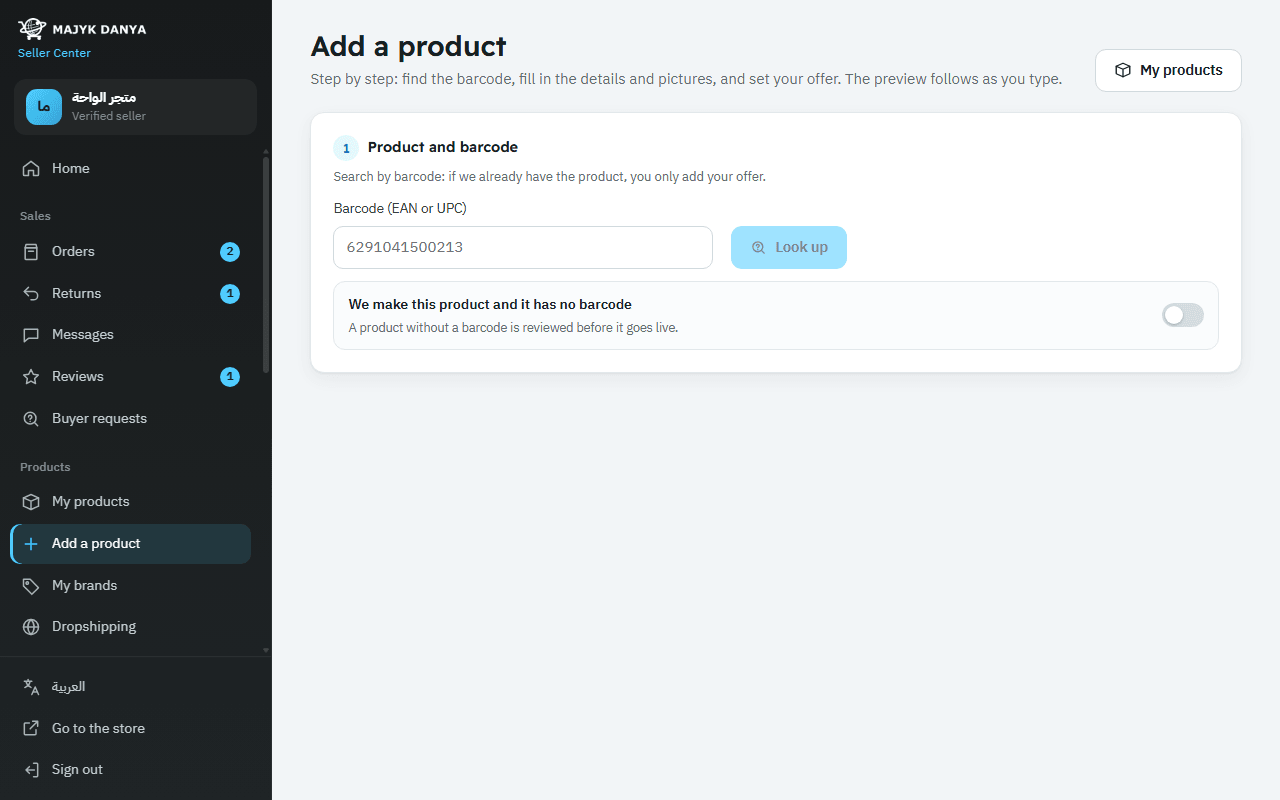
Each product gets one unified number, the product number (MDIN): MD followed by 8 letters and digits, shown on the product page. The barcode (EAN or UPC) is what links sellers to the same product: if you enter a barcode we already have, your offer joins that page and you don't write the product's details again. Buyers see one product with every seller's offer under it, and one of them is chosen for first place.
- The product exists: you see “This product exists: your offer joins it.” and go straight to your offer.
- A new product: you see “A new product: fill in its details.”, then fill in the category, details and pictures; the product gets a new number when it's saved.
- Your own product with no barcode: switch on “We make this product and it has no barcode”. Our team reviews such a product before it goes live.
- Joining by product number instead of barcode: available in the Excel upload through the “Product number (MDIN)” column.
The steps
- Open Add a product. In “Product and barcode”, type the barcode printed under the bars on the box and press “Look up”.
- For a new product, pick the most precise category in “Category”: type at least two letters of its name, and if “Choose a more specific category” shows next to it, press it to go one level down.
- In “Name, features and description”, write the brand (or Generic), the Arabic and English titles, the key features (one per line) and the description. See Write a great listing.
- In “Package and origin”, enter the packed weight in grams, the package size in millimetres and the two-letter country of origin (such as CN or AE).
- In “Pictures”, upload the main picture first, then the others, one at a time. See Product image rules.
- In “Your offer in each country”, switch on the countries you sell in and set the price, stock and delivery for each (details below).
- Press “Preview the product page” to see the page as buyers will, then press “Publish the product”. The decision shows at once.
Your offer in each country
Only the countries your account sells in appear, and each has its own offer in its own currency. You can switch on one country or several in the same submission.
| Field | What to enter |
|---|---|
| “Your SKU” | Your own code, up to 60 characters. Use a different code for each product. |
| “Condition” | New, renewed or used. Only new offers can win first place. |
| “Quantity in stock” | The units you really have ready to sell, as a whole number. |
| “How you sell” | “Retail”, “Wholesale” or both. |
| “Retail price (VAT included)” | The unit price for buyers, VAT included, at least 1. |
| “Delivery price for the customer” | 0 means free delivery. It's charged once per order line, whatever the quantity. |
| “Handling days” | The days you need to prepare an order before shipping it (0 to 30). |
| “Promised delivery days” | The days delivery takes after shipping (up to 60). A shorter promise helps you win first place, so keep it. |
Retail, wholesale or both
Retail is seen by every buyer. Wholesale is a unit price with a minimum order quantity (2 or more); you can add up to 3 cheaper tiers for bigger quantities and make the offer available for export. Wholesale prices and wholesale-only offers are seen only by verified business buyers. If you choose both, the wholesale price must be lower than the retail price. Details in Selling wholesale.
After you publish
- The decision shows at once: published, refused with exactly what to fix, or held for review. Each case is explained in Listing rules.
- Your offers are in My products, where you change price and stock with “Edit price and stock”, pause with “Pause offer” and bring it back with “Publish offer”.
- If you added the product, you can later change its titles, features, description and pictures with “Edit product details” (details below).
- Some products need papers in the country of sale before they show, so the offer waits as “Waiting for compliance papers”. See Compliance documents.
Editing a product's details after publishing
Everyone who sells a product shares its page, so only one seller edits its details: the seller who first added the product, or the brand owner alone if the product's brand is registered in Brand registry. That seller sees “Edit product details” on the product's offers in My products (a brand owner also in My brands); other sellers find why they can't under “Offer tools”, in “Product details”.
- What you can change: the Arabic and English titles, key features, description, packed weight, package size, country of origin, and the pictures and their order: add from your uploaded pictures or upload new ones, and pick the main one with “Make main”.
- What stays fixed: the brand, category and barcode, because they define what the product is. If one of them is wrong, contact us through Seller help.
- Price, stock and delivery belong to your own offer; change them with “Edit price and stock”.
- In My products, press “Edit product details” on one of the product's offers.
- Change what you need. The preview beside the form shows the page as it will look after the change, and “Undo my changes” puts the form back as it started.
- Press “Send the change”. It goes through the same Listing rules, and the decision shows at once.
| Decision | What happens |
|---|---|
| Published | The page changes at once for every buyer and every seller of the product. |
| Refused | Nothing on the page changes. Fix the reasons shown and send the change again. |
| Waiting for review | The current page stays up as it is until our team decides, and the offer shows “Change waiting for review”. If you send a newer change before then, it replaces the waiting one. |