
Bulk upload from Excel
How to download, fill in and upload the template, what each column means, and how to read each row's result and fix errors.
If you have many products, add them in one go from Upload from Excel. Each row of the file is one product in one country and goes through exactly the checks a product added by hand does; a refused row doesn't stop the others.
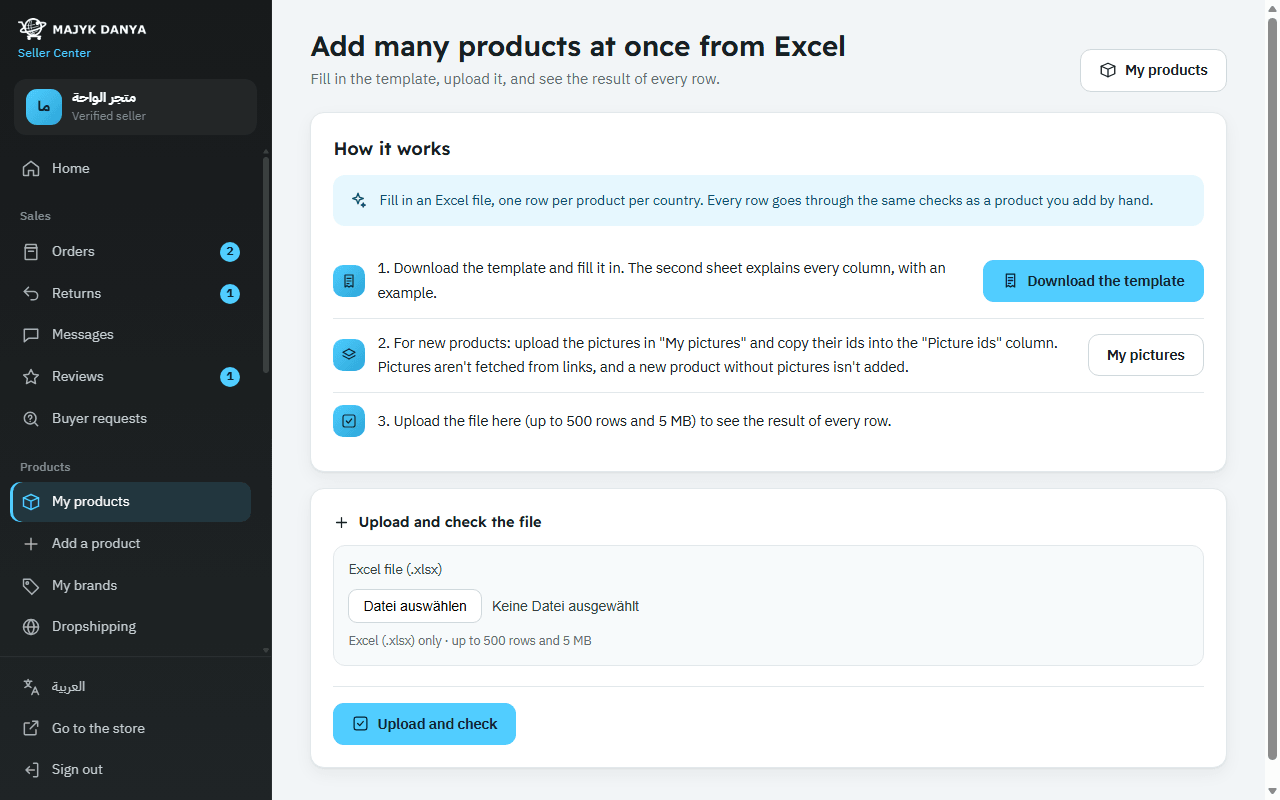
The steps
- Open Upload from Excel and press “Download the template”. The first sheet, “Products”, is for your rows; the second, “Instructions”, explains every column with a full example row.
- For new products: upload their pictures in My pictures and copy their ids in order (the first is the main one) into the “Picture ids” column. Pictures aren't fetched from links.
- Start writing on row 3 and don't change the column titles in rows 1 and 2.
- Save the file as an Excel workbook (.xlsx), choose it under “Excel file (.xlsx)” and press “Upload and check”.
- Wait for the result (it can take a minute), then press “Download the report (Excel)” if you need to fix refused rows.
File limits
- An .xlsx file only, up to 5 MB and 500 rows. Split a bigger file into several.
- One file at a time per account: if you see “A file is being checked right now”, wait for it to finish.
- Rows the check doesn't reach in the time available show “Not checked”: upload them again.
The columns
A product we already have (same barcode, or its product number, MDIN) only needs the offer columns: country, SKU, prices and stock. A new product needs every product column too.
| Column | What to write |
|---|---|
| “Barcode (EAN or UPC)” | The barcode digits. If the product exists with the same barcode, your offer joins it. |
| “No barcode (yes/no)” and “Why there is no barcode” | “yes” only for a product you make with no barcode, with the reason written; it's reviewed before publishing. Don't give a barcode and “yes” together. |
| “Product number (MDIN)” | Instead of a barcode: an existing product's number (MD and 8 letters and digits) to add your offer to it. |
| “Category (id or path)” | For a new product: the category id, or its path in Arabic or English with the levels separated by >, e.g. Home & Garden > Kitchen & Dining > Kitchen Appliances > Electric Kettles. |
| Brand, titles, features, description | “Brand”, “Arabic title”, “English title”, up to 5 features per language (one column each), “Arabic description” and “English description”, with the same rules as the form. |
| Weight, size, origin | “Packed weight (grams)”, the package length, width and height in mm, and “Country of origin (code)” as two letters. Whole numbers only. |
| “Picture ids” | Your picture ids from “My pictures”, separated by commas, up to 9, the main one first. |
| “Country” and “Your SKU” | The two-letter country code (such as AE) and your own code. A product in several countries means one row per country. For a product without a barcode in several countries, repeat the same SKU: the first row creates the product and the rest join it. |
| “Condition” | new, renewed or used (empty means new). |
| Prices | “Retail price” and “Wholesale unit price” in the country's currency, VAT included; an empty cell means you don't sell that way. A wholesale price needs a “Wholesale minimum quantity” (2 or more); “Export to (wholesale)” is optional: country codes or “all”. |
| Delivery and stock | “Delivery price” (empty or 0 means free), “Quantity in stock” (required), “Delivery days” (empty means 3). |
Each row's result
| Result | Meaning |
|---|---|
| “Published” | The row passed and the offer is live; the product number links to its page in the store. |
| “For review” | The offer is saved as “Under review” until our team decides. |
| “Refused” | Nothing was saved, and the reasons are under the row. If the reason is a restricted category, a “Request approval for this category” link shows. |
| “Needs pictures” | A new product without picture ids, so it wasn't added. Any other problems in the row are listed too, so you can fix everything in one round. |
| “Not saved” | A fault on our side: upload this row again. |
| “Not checked” | Time ran out before it was reached: upload it again. |
Fix and upload again
The report is an Excel file with the same columns plus two more: “Result” and “Reasons”. Fix the refused rows and upload the file again. It's simplest to keep only the rows you fixed; rows that succeeded now carry their product number, so they aren't added twice if they stay.